What you’re looking at.
When you scan the badge on a Certified.Photos image, you land on a verification page like the one below. Here’s what every part of it means — point by point. Hover or tap a number to jump to its explanation.
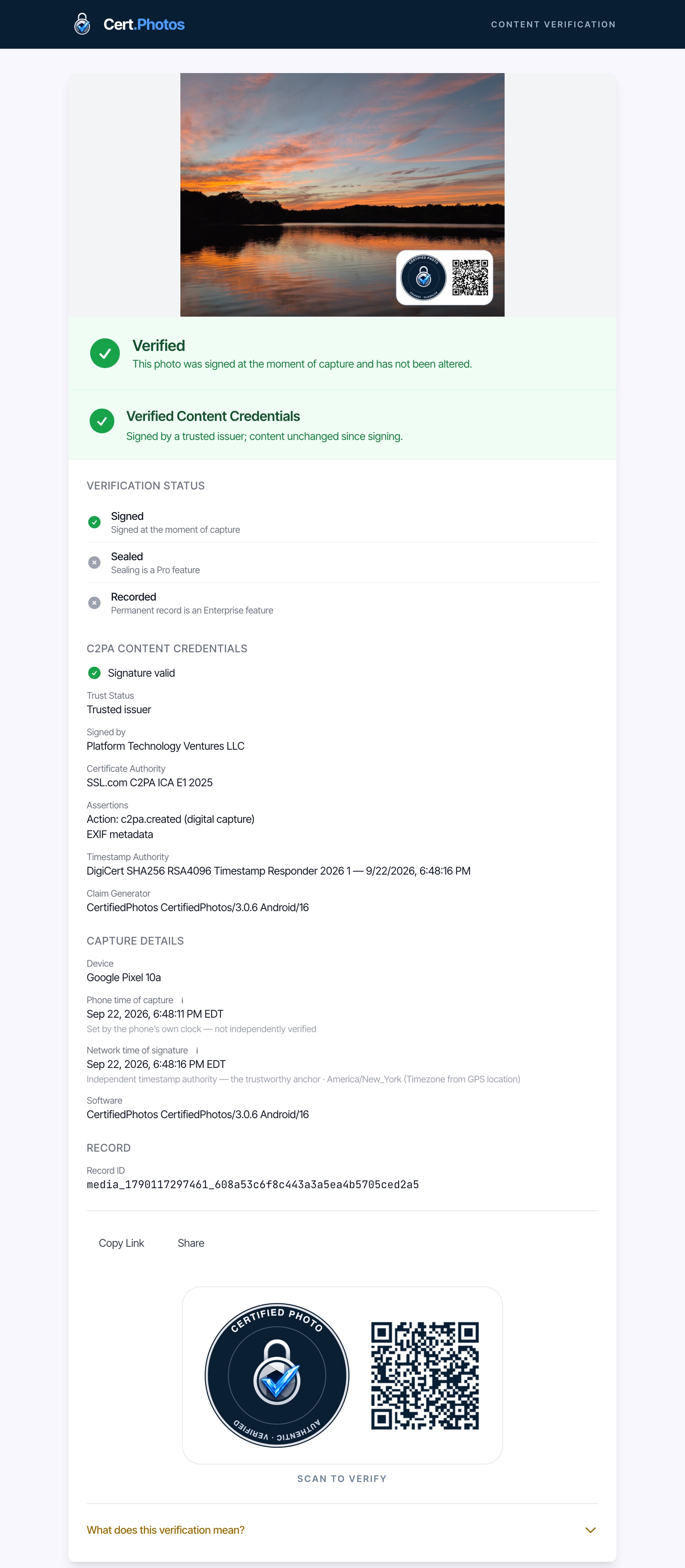
An actual verification page — cert.photos/v/<id>. Yours will look the same.
-
1
Content Verification
Every page lives at cert.photos/v/<id> and is served by Certified.Photos itself. The page is public: anyone with the link can re-check it, independently, at any time.
-
2
The photo — and its baked-in badge
This is the certified image. In the bottom-right corner a small badge — the certified coin plus a QR — is baked into the pixels.
That means even a screenshot or a re-share of just the photo still carries a visible link back to this verification page.
-
3
The verdict
The headline answer. A green Verified means the photo was signed at the moment of capture and its bytes still match that signature, unchanged since.
If the pixels had been edited or re-encoded after capture, this would turn red: Not verified.
-
4
Content Credentials (C2PA)
The photo’s C2PA manifest — the open provenance standard — checked on our side. A green Verified Content Credentials means the signature is valid, the content is unchanged since signing, and the signing certificate chains to the official C2PA trust list.
The C2PA Content Credentials section below it lists the evidence: who signed the photo, the certificate authority that issued the signing certificate, the independent timestamp authority that confirms when it was signed, and the software that created it.
-
5
Verification Status — three layers
The independent checks that stand behind the verdict:
- Signed — cryptographically signed at the shutter by a C2PA-conformant camera app, before anything could touch the frame.
- Sealed — an invisible watermark embedded directly in the pixels, as an additional, harder-to-remove marker.
- Recorded — the image’s hash is anchored to an independent, witness-confirmed timestamp, proving when it existed in this exact form — independent of the device’s own clock.
A greyed-out layer is part of a higher tier.
-
6
Capture details
The device, the app version, and two clocks. Phone time of capture is what the phone’s own clock said. Network time of signature comes from the independent timestamp authority, seconds later: that is the time to rely on.
All of it is read from the signed record, so it stays exactly as captured.
-
7
The record
The Record ID is the verification identifier — the same
<id>in the page’s URL. When a witness-anchored timestamp exists, the Recorded time appears here too. This is the stable reference you can cite or re-look-up later. -
8
Scan to verify
The certified coin beside a QR code that points right back to this page — the same lockup baked onto the photo itself. Anyone can scan it to re-open the verification independently. Copy Link and Share do the same thing.
-
9
“What does this verification mean?”
Expands the full explanation: the security layers, how the proof was produced, what it proves, and the trust chain, built on C2PA.
It also links the original, credentialed file so you can verify it yourself in any standard C2PA tool, e.g. contentcredentials.org/verify.
Verification proves this image came out of a trusted capture pipeline and is unchanged since — signed at the shutter, bytes intact, time witnessed. What the photo shows is for the viewer to judge. That distinction is the point.